Workflo
A notes and productivity plugin for Adobe Premiere Pro.
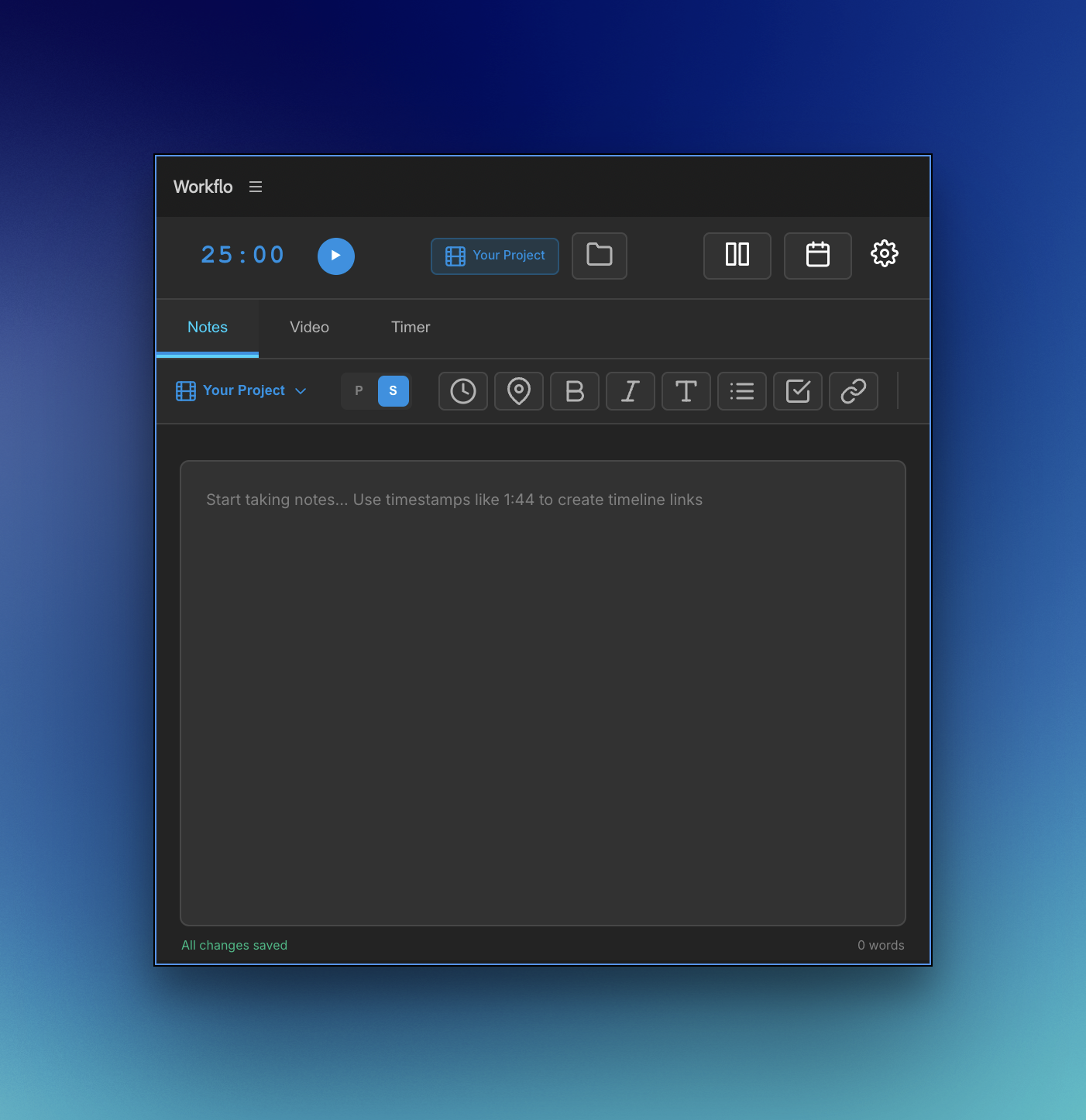
Keep project notes, references, markers, and your focus timer beside the timeline. Workflo brings everyday editing tools into one workspace, from client feedback to your next cut.
Workflo
Workflo
Made for your next cut
Price: $39.99
For Premiere Pro editors working on client videos, social content, music videos, and personal projects.
Inside Workflo
Project notes: Save text with your project or on your computer.
Markers: Manage Premiere markers and marker colors.
Calendar: View Google Calendar and iCal events.
Focus timer: Plan a focused session with the Pomodoro timer.
YouTube references: View reference videos inside Premiere.
Split screen: Keep notes visible alongside your work.
Flexible layout: Resize the interface to suit your workspace.
Links and timecodes: Keep useful references close to your edit.
-
Keep links to client conversations, briefs, and important documents in your project notes. Add notes from client meetings so decisions, feedback, and reference material are easy to find when you return to the edit.
-
Give each marker a clear purpose: “Replace this shot,” “Tighten this pause,” or “Client approved this take.” Add notes you can see on the Premiere Pro timeline, edit markers and their colors, and review their notes together in a notepad view. It is a more intuitive way to connect your notes to the moments they refer to.
-
For projects that run for months, keep a running record of what changed, what was approved, and what still needs attention. Leave yourself a handoff note at the end of each session so you can reopen the project with a clear starting point instead of reconstructing your progress.
-
Use global notes for information you refer to across projects, such as editing reminders, useful links, or an export checklist. Keep a to-do list directly in your notes so the next steps stay beside the context you need to complete them.
-
Use the Google Calendar integration to keep scheduled editing time, client meetings, and deadlines in view while you work. Seeing your commitments beside the edit makes it easier to plan a long session and decide what to tackle before your next meeting.
-
Choose a task from your notes and use the Pomodoro timer for a focused work interval, followed by a break. Give each interval a specific goal—review one scene, complete a revision pass, or organize footage—to make a long editing session easier to manage.
-
Open a YouTube tutorial or reference link in Workflo and use split screen to take notes alongside the video. Capture useful steps, settings, or ideas while applying them to your edit, with the tutorial and your notes close at hand.
-
Use the support form below and include your Premiere Pro version and operating system. When reporting an issue, include the steps to reproduce it and any error message.
Put Workflo to work
Real ways to use Workflo in your Premiere Pro editing workflow. Open a use case to explore.